




Add ZillAPI to Grok Bot as a plugin, give your bot the Property Scanner skill, and get a shortlist of homes worth a closer look every weekday morning.
Grok Bot runs bots that can use apps, skills and routines. Add the ZillAPI MCP server as a plugin and any of your bots can look up U.S. homes, read Zestimates and search listings. The Property Scanner skill, made by the ZillAPI team, then turns that into a routine: it compares each asking price with nearby sold homes and the Zestimate, and sends you a numbered photo shortlist.
Before you start
- Grok Bot. The steps below use the Grok Bot desktop app.
- A ZillAPI API key. Sign up, then create a key on the API keys page. Name it something like
Grok Botso you can revoke it later. Keys start withzk_.
1. Add ZillAPI as a plugin
-
In the Grok Bot desktop app, open Connect apps and choose Add a custom connector at the bottom.
-
Enter the name
ZillAPIand pick the type Remote HTTPS. -
Set Server URL to
https://api.zillapi.com/mcpand add this HTTP header:Authorization: Bearer zk_your_key_here -
Choose Add plugin.
ZillAPI’s tools are now available to your bots. xAI’s docs cover connecting apps and custom connectors.
2. Give your bot the Property Scanner skill
In a chat with your bot, send:
Install this skill and onboard me:https://github.com/ZeroPointRepo/property-scannerThe bot installs the skill and starts onboarding: where to look, your budget and how many bedrooms you need. You can also name must-haves and dealbreakers, such as a garage, no pool or a maximum HOA. The skill’s source is open on GitHub.
3. Run your first search
Tell the bot what to look for, for example:
Search Phoenix ZIP 85032 for single-family homes under $450,000 with at least 3 bedrooms. Return up to 5 matches with photos, prices, reasons to investigate, and concerns.The first scan takes a few minutes. Each home arrives as its own message with a photo, the asking price, the comparison it was based on and what needs checking.
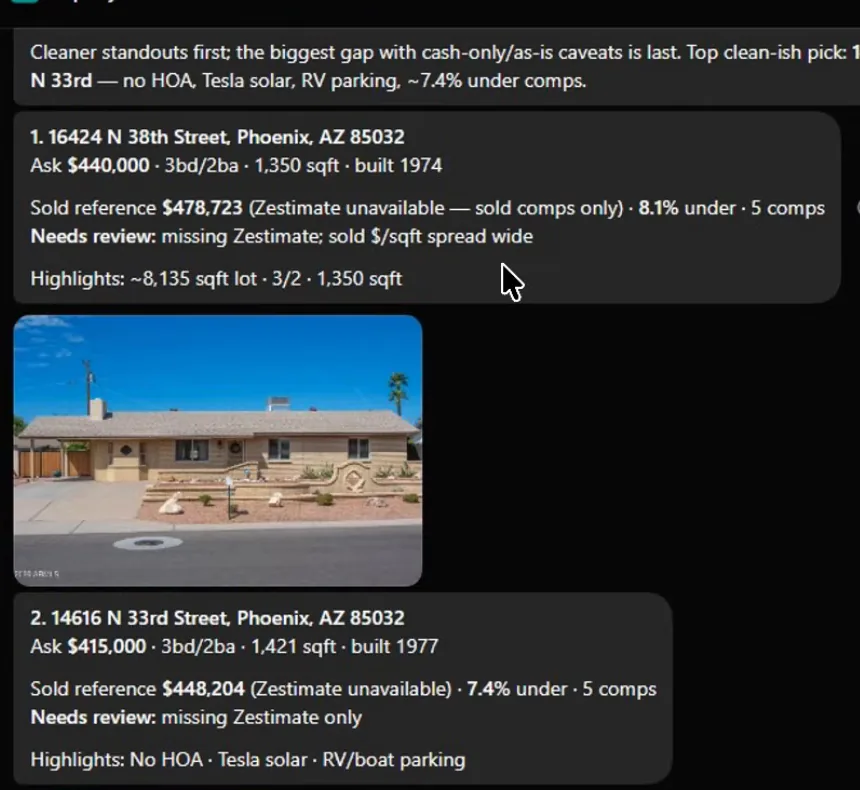
Ask about a home by its number, without retyping the address:
Tell me more about listing #1. Show the comparisons and what needs checking.If a result is wrong for you, say why. The bot remembers it for future searches:
For future searches, only include homes with a two-car garage.4. Repeat it every weekday
Ask the bot to repeat the search, for example “Run this search every weekday at 9:00 AM.” Grok Bot keeps it as a routine: open it from the bot’s panel to check the time and switch it to Active. After that, the bot only messages you when there is a new match or a meaningful change. xAI’s docs cover skills and routines.
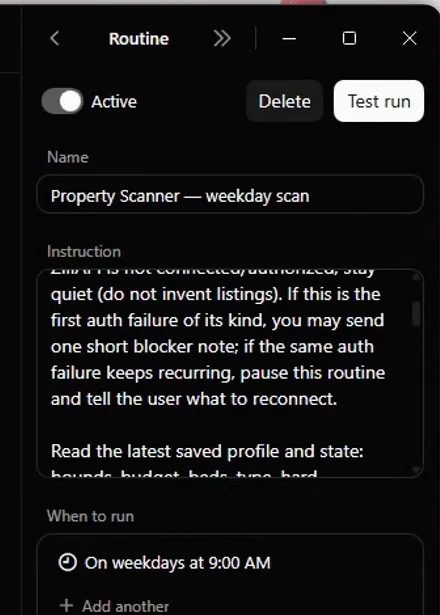
Or start from the ready-made template
Prefer a bot that is already set up? The ZillAPI team also publishes Property Scanner as a Grok Bot template, with the routine prepared.
-
Open the Property Scanner template and select Add to Grok Bot, then Add bot.
-
Send Let’s onboard. and answer the questions. When the bot asks to add the ZillAPI connector, choose Yes, add ZillAPI.

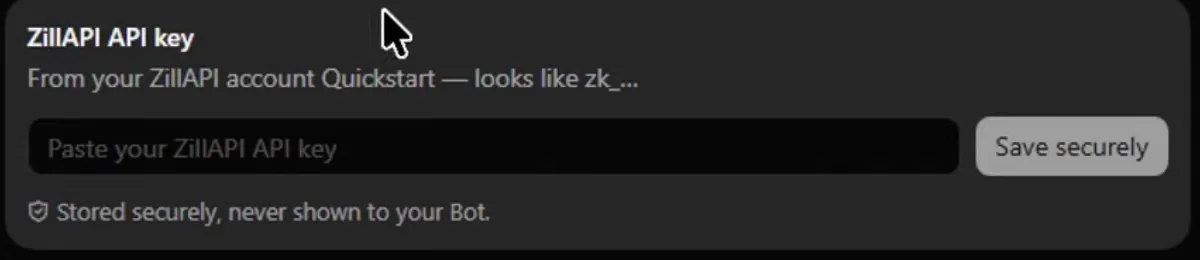
- Paste your ZillAPI API key into the key field and select Save securely. Grok Bot stores the key securely and does not show it to the bot or in the chat.
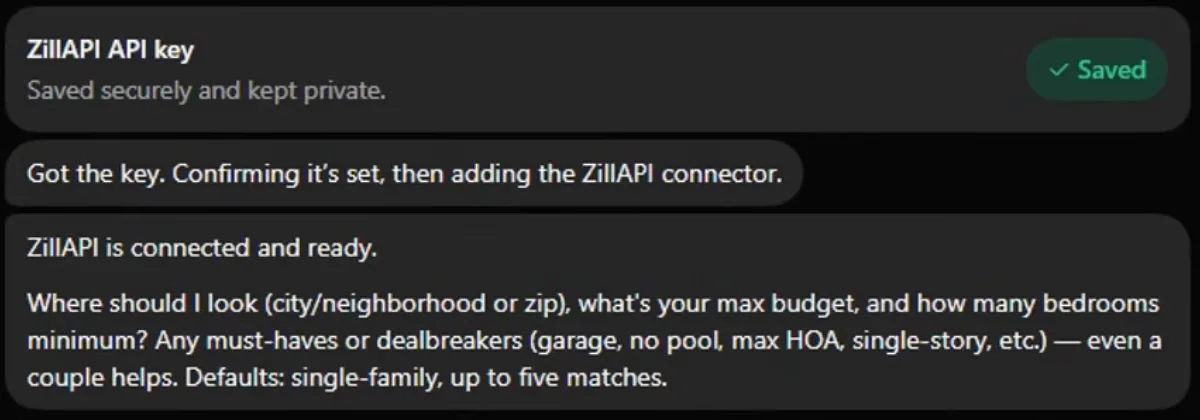
- The bot confirms that ZillAPI is connected. Continue with your first search (step 3 above), then switch the prepared weekday routine to Active.
Watch it
The video walks through the template, onboarding, the ZillAPI connection, a first search, follow-up questions and the weekday routine.

Good to know
- Results are leads, not appraisals. A gap between asking price and comparable-property estimates is a lead to check, not proof of a bargain. The bot shows how many comparisons it used and what is missing.
- Searches run on your ZillAPI account. Smaller searches use less. Costs per tool and plans are on the pricing page.
- Who publishes it. The ZillAPI team publishes the Property Scanner skill and the Grok Bot template. The template is user-created on x.ai, not an official xAI product.
FAQ
- How do I add ZillAPI to Grok Bot?
- In the Grok Bot desktop app, open Connect apps, choose Add a custom connector, select Remote HTTPS, enter https://api.zillapi.com/mcp as the server URL and add the header Authorization: Bearer with your ZillAPI key, then choose Add plugin. To get the Property Scanner workflow, ask your bot to install the skill from github.com/ZeroPointRepo/property-scanner.
- Is there a ready-made Grok bot for ZillAPI?
- Yes. Open the Property Scanner template and select Add to Grok Bot. Send Let’s onboard, answer the search questions, and choose Yes, add ZillAPI when the bot offers the connector. Paste your ZillAPI API key into the secure field and select Save securely.
- What does Property Scanner do?
- Property Scanner searches U.S. listings with ZillAPI, compares each asking price with nearby sold homes and the Zestimate, and sends a numbered shortlist with photos and the reasons each home stood out. It remembers your preferences and can repeat the search on a weekday schedule. Its results are leads to check, not appraisals.
Links
- Skill source: github.com/ZeroPointRepo/property-scanner
- Grok Bot template: Property Scanner
- Other ways to connect: ChatGPT, MCP server and AI agents
ZillAPI is an independent service, not affiliated with, endorsed by, or sponsored by Zillow Group, Inc. or xAI. “Zillow” and “Zestimate” are trademarks of Zillow Group, Inc., used here descriptively. See Trademark & Affiliation.