Bubble lets you build full web apps without code. You design pages by dragging elements, set up a database visually, and connect to outside services through the API Connector. Founders use it to launch real estate tools, marketplaces, and analytics dashboards in weeks instead of months.
The Zillow API plugs into Bubble through the API Connector. Once connected, your app can look up any property, run a search, or pull a Zestimate. The data flows into repeating groups, text elements, and your database.
Here is how to connect the Zillapi REST API to Bubble and build a working property app.
What can you build?
Bubble handles the app structure. The API handles the property data. Together they cover most real estate app ideas.
| App type | What it does | API endpoint used |
|---|---|---|
| Property lookup tool | Enter an address, see full property details | Property by address |
| Search marketplace | Filter listings by price, beds, location | Search endpoint |
| Deal analyzer | Calculate ROI, cap rate, cash flow | Property by address |
| Comps tool | Show comparable sales near a property | Search (RECENTLY_SOLD) |
| Lead capture site | Collect leads, enrich with property data | Property by address |
| Portfolio tracker | Save properties, monitor value changes | Property by address |
Each API call costs 1 credit ($0.005). For API key setup, see the step-by-step guide.
How do I connect the API in Bubble?
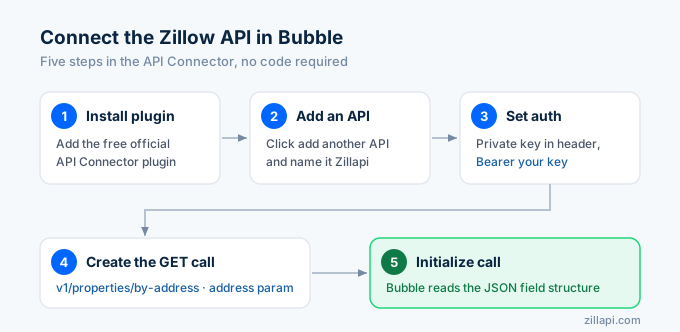
Bubble does not have a native Zillapi plugin. You connect through the API Connector, which works with any REST API. Here is the setup, step by step.
Step 1: Install the API Connector
In your Bubble editor, go to the Plugins tab on the left sidebar. Click “Add plugins” and search for “API Connector.” Install it. This is a free official Bubble plugin.
Step 2: Add a new API
Open the API Connector plugin settings. Click “Add another API.” Name it “Zillapi” so you can find it later.
Step 3: Set up authentication
Set the authentication dropdown to “Private key in header.”
For the header key, enter Authorization. For the header value, enter Bearer YOUR_API_KEY, replacing YOUR_API_KEY with your actual key from zillapi.com.
Mark the key as private. This tells Bubble to store it encrypted on the server so your app users never see it.
Step 4: Create the property lookup call
Click “Add another call.” Configure it like this:
Name: Get Property
Use as: Data (this lets you pull data into elements)
Method: GET
URL: https://api.zillapi.com/v1/properties/by-address
Add two parameters in the parameters section:
| Parameter | Value | Type |
|---|---|---|
| address | 1600 Pennsylvania Ave NW, Washington DC 20500 | querystring |
| fields | address,zestimate,rentZestimate,bedrooms,bathrooms,livingArea,yearBuilt,homeType | querystring |
Uncheck the “Private” box next to the address parameter so users can change it. Keep the fields parameter as is.
Step 5: Initialize the call
Click “Initialize call.” Bubble sends a test request to the API and reads the response structure. You should see the property data appear: Zestimate, bedrooms, bathrooms, and the rest.
Bubble now knows the shape of the response. Every field becomes available to use in your app’s elements.
If the initialization fails, check that your API key is correct and the test address includes street, city, state, and ZIP.
How do I build a property lookup page?
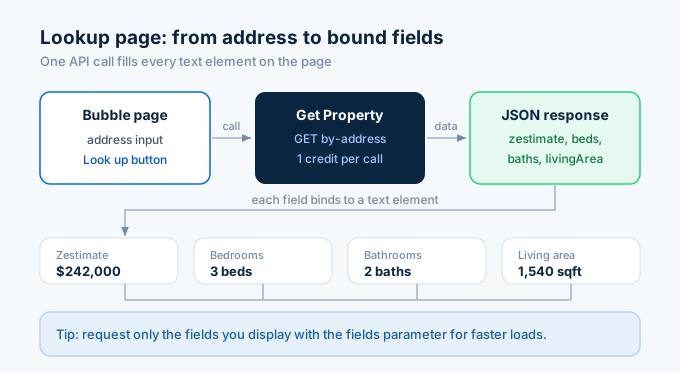
With the API connected, you can build a page where users enter an address and see the property details.
Add the input and button
Drag an Input element onto the page. Set its placeholder to “Enter a property address.” Name it “address_input.”
Drag a Button onto the page. Set its text to “Look up property.”
Add text elements for the results
Drag several Text elements onto the page for the results. Leave them empty for now. You will fill them with API data in the next step. Add one each for:
Address, Zestimate, Bedrooms, Bathrooms, Square footage, Year built.
Wire up the workflow
Click the button and choose “Start/Edit workflow.” Add an action: “Display data in a group” or set the text elements directly.
For each result text element, set its content to the API call result. For example, the Zestimate text element gets the value: Get Property's zestimate where the address parameter equals address_input's value.
When a user types an address and clicks the button, Bubble calls the API and fills in the property details. One API call per lookup.
How do I build a search marketplace?
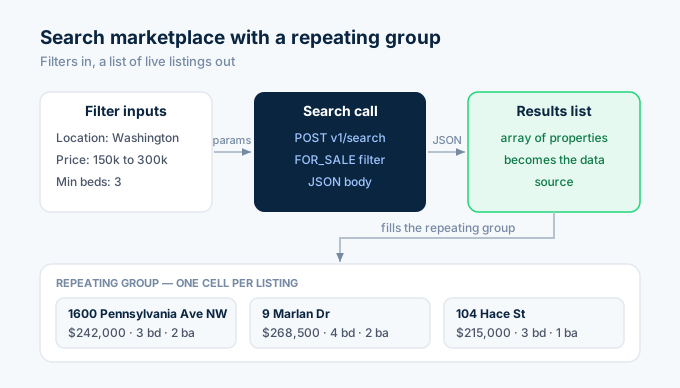
A search marketplace lets users filter properties and browse results. This uses the search endpoint and a repeating group.
Set up the search call
In the API Connector, add another call:
Name: Search Properties
Use as: Data
Method: POST
URL: https://api.zillapi.com/v1/search
In the body section, set the type to JSON and enter:
{ "location": "<location>", "listingStatus": "FOR_SALE", "homeType": ["SINGLE_FAMILY"], "minPrice": <minprice>, "maxPrice": <maxprice>, "minBedrooms": <minbeds>}Bubble turns each <value> into a parameter you can fill from user inputs. Initialize the call with sample values to read the response.
Build the search interface
Add these elements to your page:
An Input for location (city or ZIP). Two Inputs or a slider for minimum and maximum price. A Dropdown for minimum bedrooms. A search Button.
Add the repeating group
Drag a Repeating Group onto the page. Set its type of content to the Search Properties API response. Set the data source to the Search Properties call, mapping each parameter to the matching input.
Inside the first cell of the repeating group, add Text elements for the property address, price, bedrooms, and bathrooms. Set each one to the current cell’s matching field.
When a user enters filters and clicks search, the repeating group fills with live listings from the API. Results update without a page reload.
How do I build a deal analyzer?
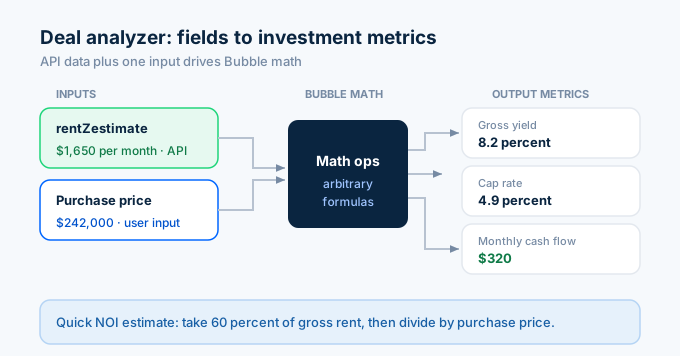
Investors want to plug in a property and see the numbers. This combines an API lookup with Bubble’s math operations.
Pull the property data
Use the Get Property call from earlier. Add an input for the purchase price and an input for monthly rent (or pull the rent estimate from the API).
Calculate the metrics
Bubble has built-in math operators. Create text elements that compute:
Gross yield: annual rent divided by purchase price, times 100.
Cap rate: net operating income divided by purchase price, times 100. Use 60% of gross rent as a quick NOI estimate.
Cash flow: monthly rent minus estimated monthly costs.
For each, set the text element’s content using Bubble’s arbitrary math. For example, gross yield equals Get Property's rentZestimate * 12 / Input Purchase Price's value * 100.
The analyzer shows live investment numbers based on real property data. For the full formulas behind these metrics, see the NOI guide and the cap rate guide.
How do I save results to the database?
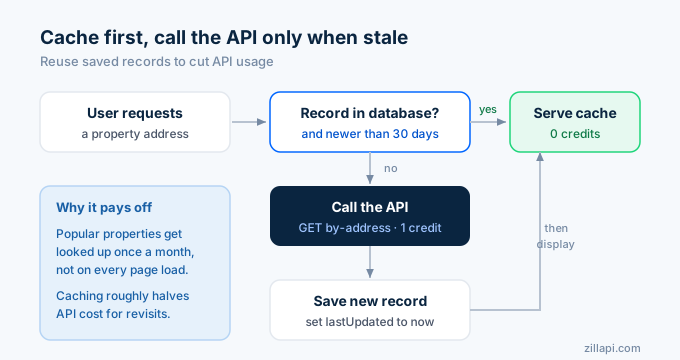
Caching property data in Bubble’s database reduces repeat API calls. If a user looks up the same property twice, you serve it from the database instead of calling the API again.
Create the Property data type
In the Data tab, create a new data type called Property. Add fields:
address (text), zestimate (number), bedrooms (number), bathrooms (number), livingArea (number), yearBuilt (number), lastUpdated (date).
Save after lookup
In your lookup button workflow, add an action: “Create a new thing.” Set the type to Property. Map each field from the API response:
address = Get Property’s address, zestimate = Get Property’s zestimate, and so on. Set lastUpdated to “Current date/time.”
Check the cache first
Before calling the API, add a condition: only call the API if no Property record exists with that address, or if the existing record’s lastUpdated is more than 30 days old. Otherwise, pull from the database.
This pattern cuts your API usage. Frequently viewed properties get looked up once a month instead of on every page load.
What does this cost?
Bubble and the API both have free tiers for building and testing. Here is what a live app costs.
| Component | Free tier | Paid |
|---|---|---|
| Bubble (build/test) | Yes | $32/mo (Starter) for live app |
| API lookups | 100 credits at signup | $5/mo (1,000) or $54/yr (12,000) |
| API Connector plugin | Free | Free |
For a small app serving 500 lookups per month with caching, you spend $5 on the API plus the Bubble plan. The API is the cheap part.
| Monthly usage | API credits | API cost | With caching |
|---|---|---|---|
| 500 lookups, no cache | 500 | $2.50 | $2.50 |
| 2,000 lookups, 50% cached | 1,000 | $5.00 | $5.00 |
| 5,000 lookups, 70% cached | 1,500 | $7.50 | $7.50 |
Caching cuts API costs roughly in half for apps where users revisit the same properties.
Tips for a stable Bubble app
Initialize every API call with a real address before you build elements around it. Bubble needs a successful response to learn the field structure. If you build first and initialize later, your element bindings may break.
Mark the API key field as private in the API Connector. This keeps your credentials off the user’s browser. Never put the key in a regular parameter or a client-side workflow.
Use the fields parameter to request only the data your app displays. Smaller responses load faster and make the Bubble field list easier to navigate.
Handle empty results. When an address returns no data, show a friendly message instead of blank elements. Add a condition that checks if the API response is empty and displays “Property not found” when it is.
Test on the search endpoint with a small result set first. Large searches return many properties and can slow down your repeating group. Add pagination or limit the result count for a smoother experience.
How do I get started?
Go to zillapi.com and sign up. You get 100 free credits with no credit card required. Then open Bubble, install the API Connector, and follow the setup steps above.
Start with the property lookup page. It is the simplest build and confirms your API connection works. Once that runs, add the search marketplace and deal analyzer.
For the no-code automation version using Zapier, see the Zapier guide. For the Python version if you outgrow no-code, see the Python tutorial. For property field documentation, see the property data guide.
Frequently asked questions
Can I connect the Zillow API to Bubble?
Yes. Use Bubble’s API Connector plugin to call the Zillapi REST API. Add a new API, set the authentication to “Private key in header” with your API key, create a GET call to the property lookup endpoint, and pass the address as a parameter. Bubble parses the JSON response and lets you display any field in your app’s elements. The setup takes about 15 minutes with no code.
How do I build a property search app in Bubble?
Set up the Zillapi search endpoint as an API Connector call. Add a search input and filter dropdowns to your page. Place a repeating group and set its data source to the API call, passing the user’s filter values as parameters. Each cell displays one property with its address, price, beds, and baths. When a user searches, the repeating group fills with live results from the API.
Do I need coding skills to build a real estate app with Bubble?
No. Bubble is a visual no-code platform. You build the database, design pages by dragging elements, and create workflows with point-and-click logic. The API Connector handles property data calls through a configuration form. The only technical step is pasting your API key and endpoint URL, which the setup guide walks you through step by step.
How much does it cost to build a real estate app with Bubble and the Zillow API?
Bubble’s free plan lets you build and test. Paid plans start at $32 per month for a live app. The API costs $5 per month for 1,000 property lookups or $54 per year for 12,000. A small app serving 500 lookups per month costs $5 for the API plus the Bubble plan. You get 100 free API credits at signup with no credit card.
Can I store property data in Bubble’s database?
Yes. After the API Connector returns property data, use a Bubble workflow to save the fields into your database. Create a data type called Property with fields for address, Zestimate, bedrooms, and square footage. Run an action that creates a new Property record from the API response. This lets you cache results and reduce repeat API calls for properties you have already looked up.
Is my API key safe in Bubble?
Yes. When you add your API key to the API Connector and mark the field as private, Bubble stores it encrypted on its server and never sends it to the user’s browser. Your app users cannot see the key in the page source or network requests. This keeps your API credentials secure while the app makes calls on the backend.